

Automation Engine
Configure automation rules for student agency workflows, including tasks, notifications, stage changes, document follow-up, and Lead follow-up.
Automation Engine helps admins reduce repeated manual work in student agency workflows. Use it when the same kind of follow-up, task, notification, or stage update should happen every time a clear workflow moment occurs.
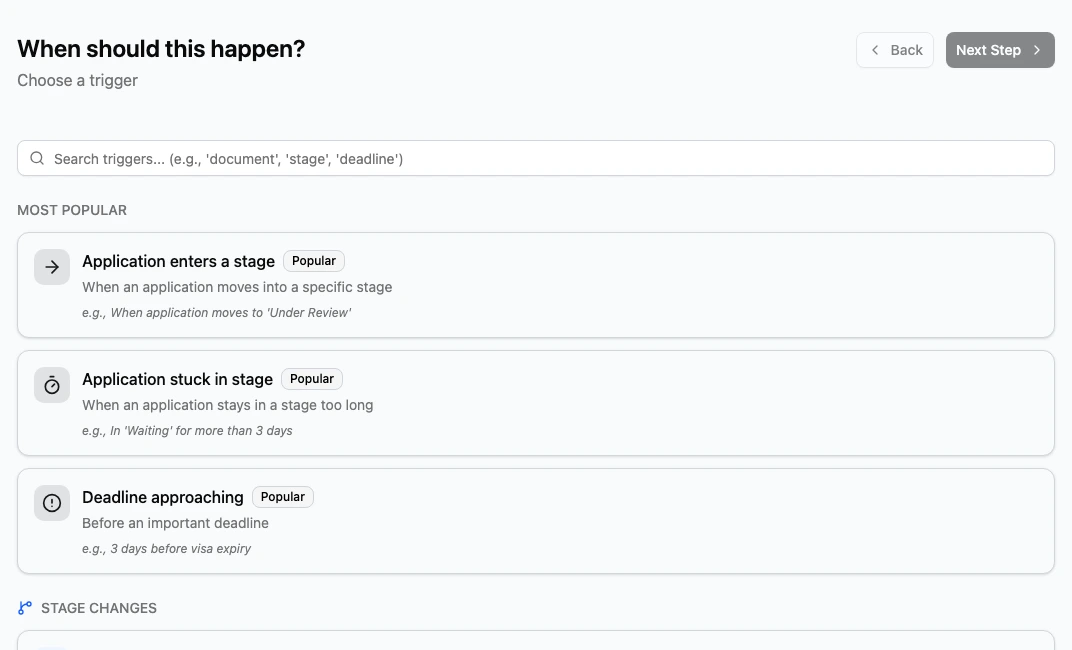
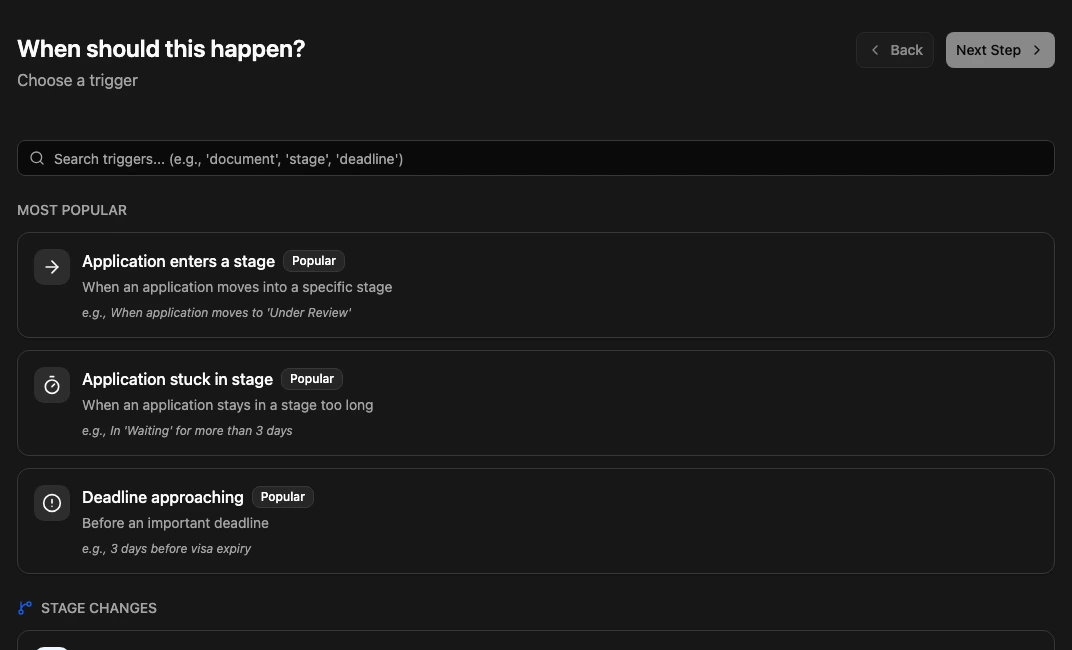
For example, an admin might create rules that remind a counselor to follow up with a new Lead, notify the visa team when an application reaches a visa stage, or start document follow-up when a student profile is missing required files. The examples in this guide are planning examples. Always choose from the triggers, conditions, and actions that appear in your Automation Engine screen.
This guide helps you configure:
- Rules for Student Visa Processing workflows.
- Follow-up tasks for Leads, student profiles, and applications.
- Notifications for stage handoffs, document follow-up, and delayed work.
- Safe rollout practices so rules do not create noise or duplicate work.
- A simple testing checklist before rules are used for live work.
Before you start
Prepare the workflow decisions before creating rules:
| Item | Why it matters |
|---|---|
| Pipeline and stage names | Rules are easier to review when stages such as Document Collection, Visa Application, and Visa Approved are already agreed. |
| Roles and users | Notifications and task ownership should go to people who can act on them. |
| Document types | Document follow-up works best when the required files are named clearly. |
| Task ownership | Decide who receives tasks when a rule creates follow-up work. |
| Notification habits | Decide which moments deserve a message and which should stay quiet. |
| Test records | Use sample Leads, student profiles, and applications before relying on rules for live work. |
Start with a few high-value rules. Add more only after the team confirms the first rules are useful.
Open Automation Engine
Use this path when you want to manage automation:
/t/settings/automation
The page title is Automation Engine. The main section is Automation Rules.
If no rules exist yet, use Create your first rule. After rules exist, use Create Rule to add another rule.
Understand Automation Rules
An automation rule describes what should happen when a workflow moment matches the rule. Most rules can be planned with five parts:
| Part | What to decide |
|---|---|
| Trigger | The moment that starts the rule, such as a Lead needing follow-up, an application changing stage, or document follow-up becoming due. |
| Conditions | The filters that decide whether the rule should continue. Conditions help keep the rule focused on the right pipeline, stage, owner, status, or student information. |
| Actions | The work the rule should start, such as creating a task, sending a notification, or updating application workflow state. Confirm the available action choices in the rule builder. |
| Testing | The sample records you will use to prove the rule runs once and only affects the intended work. |
| Monitoring | The review plan for checking whether the rule is helping or creating extra noise. |
Clear rules are easier to support. Name each rule after the outcome, not just
the trigger. For example, use a name like Notify visa team when application enters Visa Application instead of Visa rule.
Build safe first rules
Use these habits for the first version of your automation setup:
- Create one rule for one outcome.
- Keep conditions narrow until the team trusts the rule.
- Send notifications only to roles or users who can take action.
- Avoid creating the same task from more than one rule.
- Review existing stage notifications before adding automation notifications.
- Keep a short note outside the rule explaining why it exists and who owns it.
- Review rules after the first week of live use.
Automation should make work clearer. If a rule creates messages that people ignore, make it narrower or remove the notification.
Student Visa Processing examples
These examples show how admins commonly think about automation for student agency workflows. They are examples only. Confirm the exact trigger, condition, and action choices in Automation Engine before using a rule.
| Workflow need | Example rule plan | Why it helps |
|---|---|---|
| New Lead follow-up | When a new Lead needs attention, create a follow-up task for the assigned counselor or notify the intake team. | Leads get a clear next step instead of waiting for manual review. |
| Document collection follow-up | When a Student Visa Processing application is in Document Collection and required files are still missing, create a document follow-up task. | Counselors can chase missing files before the application stalls. |
| Stage handoff to the visa team | When an application enters Visa Application, notify the visa team or create a review task for the assigned visa officer. | The next team knows when to start work. |
| Delayed stage work | When an application has stayed too long in a stage, notify the owner or create a review task. | Managers can see where help is needed before deadlines are missed. |
| Visa decision follow-up | When an application reaches Visa Approved, create the next support task, such as pre-departure follow-up. | The student gets support after the major application milestone. |
| Correction after document review | When document review finds missing or incorrect information, create a task for the counselor to contact the student. | Corrections are tracked as work, not left in notes. |
Avoid noisy or duplicate automation
Before adding a rule, ask these questions:
- Is this work already handled by a stage notification, checklist, or manual team process?
- Could another rule create the same task or notification?
- Does the rule need all applications, or only one pipeline such as Student Visa Processing?
- Does the notification go to the smallest useful audience?
- What should happen if the record changes again shortly after the first rule runs?
- Who will review the rule if the team says it is noisy?
If two rules might run for the same moment, combine them or narrow one rule. Users should not receive duplicate reminders for the same work.
Test before using rules for live work
Test each rule with sample work before relying on it:
- Create or choose a sample Lead, student profile, or application.
- Set up the sample record so it matches the rule trigger and conditions.
- Run the workflow step that should start the rule.
- Confirm the rule creates only the expected task, notification, or workflow update.
- Confirm the rule does not run for records that should be excluded.
- Confirm the assigned user or role can see and act on the result.
- Repeat the same workflow step and check that duplicate work is not created.
- Ask one daily user to review the result before using the rule for real students.
Keep the first live period small. After a few days, review whether the rule reduced manual follow-up, created clearer ownership, and avoided unnecessary messages.
Monitor automation after launch
Automation needs light maintenance. Review rules when:
- A pipeline or stage name changes.
- A role or team responsibility changes.
- Document requirements change.
- Users report duplicate tasks or notifications.
- A new student agency workflow is added.
- The team stops acting on a notification.
Retire rules that no longer match the way the team works. A small set of useful rules is better than a long list that nobody trusts.
Related guides
| Guide | Use it for |
|---|---|
| Pipeline stages | Configure the stages, stage notifications, movement rules, and timing that automation may support. |
| Checklists | Add repeatable task lists for stage work and task completion. |
| Document types | Define the files used in document collection and review workflows. |
| Notifications | Configure message behavior before adding extra automation notifications. |
| Tasks and follow-ups | Understand how users manage the work created by follow-up rules. |
| Leads | Review the daily workflow for new Leads and counselor follow-up. |
| Applications | See how stage changes affect daily application work. |