

Permissions and scope
Understand how Edmissa decides what each user can see and do.
Permissions decide what a user can do. Scope decides which records those permissions apply to. Edmissa checks both, plus the user's account status, roles, locations, supervisors, system settings, and workflow rules.
Use this guide when you need to understand why a user can see a record, cannot open a page, or has a disabled action.
How permission checks work
When a user tries to open a page, view a record, or take an action, Edmissa checks several layers:
| Layer | What Edmissa checks |
|---|---|
| Account | The user must be active, unlocked, and signed in. |
| Roles | The user's assigned roles are combined into one effective access profile. |
| Data area | The role must allow access to the relevant area, such as students, applications, documents, tasks, or approvals. |
| Access level | The role must have enough access for the action: View Only, Manage Records, or Full Control. |
| Scope | The record must fall inside the user's own, assigned, team, or all-record scope. |
| Location | Location assignments can affect team visibility, record ownership, and branch-based work. |
| System setting | Settings pages require the matching system setting permission. |
| Workflow rule | Pipeline stages, approvals, checklists, and feature settings can still restrict specific actions. |
Multiple roles combine access. If one role grants broader access, another narrow role does not remove it.
Access levels
Access level answers: "What can this role do in this area?"
| Access level | What it means |
|---|---|
| No Access | The role cannot use that data area. |
| View Only | The role can view records within the selected scope. |
| Manage Records | The role can create, edit, and work with records within the selected scope. |
| Full Control | The role has broad control, usually including delete, export, assignment, approval, or management actions when those actions apply. |
Full Control is intended for managers and trusted admins. In most data areas, Full Control requires Team or All scope.
Scope
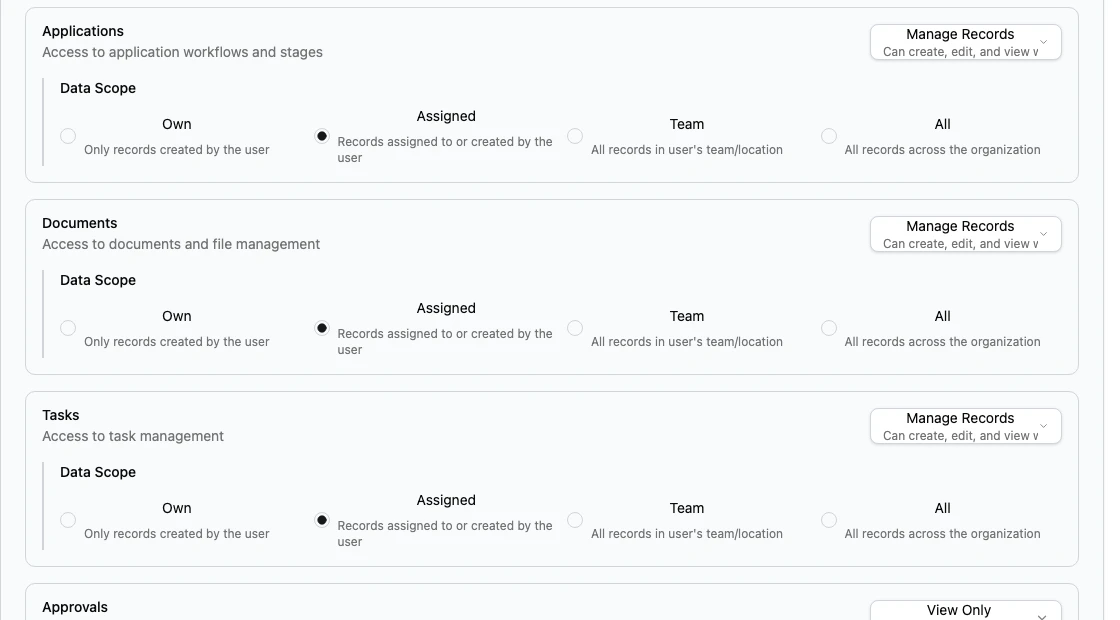
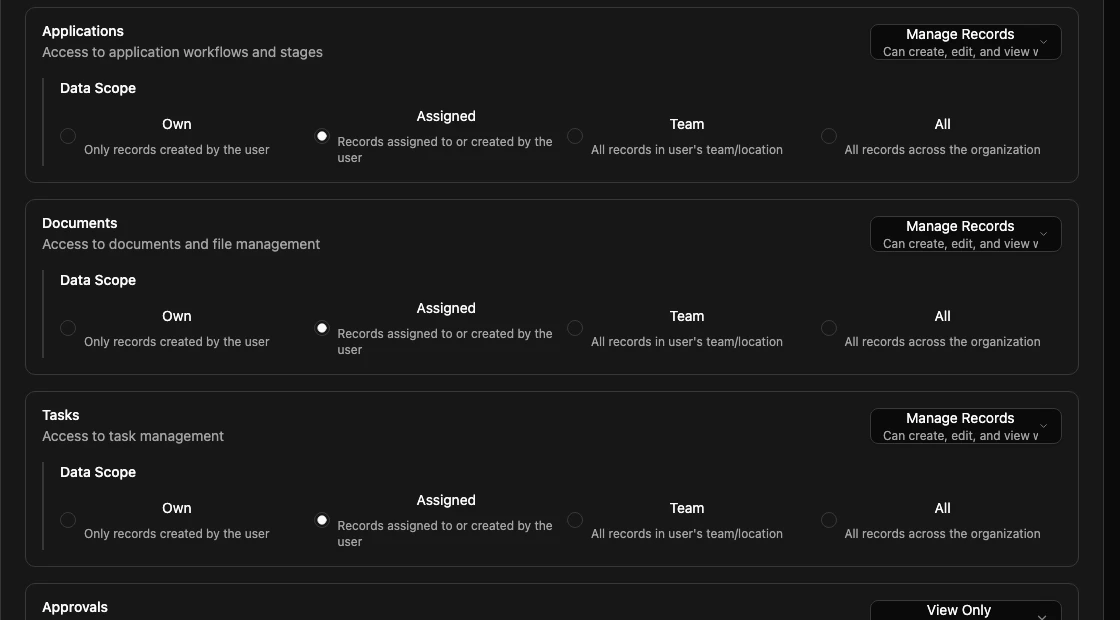
Scope answers: "Which records does this access level apply to?"
| Scope | What it means | Typical use |
|---|---|---|
| Own | Records the user created. | Narrow personal work where assignment is not the main control. |
| Assigned | Records assigned to or created by the user. | Counselors, consultants, and specialists who work their own caseload. |
| Team | Records in the user's team or location context. | Managers who oversee a branch or team. |
| All | Records across the organization. | Owners, directors, and central admins. |
Scope is not a permission by itself. A user with View Only plus All scope can view all matching records, but cannot edit them. A user with Manage Records plus Assigned scope can edit assigned records, but not every record in the workspace.
Incoming Leads can use Assigned, Team, or All scope. Support reports can use Own or All scope. Other main data areas usually support Own, Assigned, Team, and All for view or manage access.
Data access areas
Configure each data area based on the role's real work.
| Data area | Use it for |
|---|---|
| Students | Student profiles and student details. |
| Student Relationships | Relationships between student profiles when your workspace uses linked student profiles. |
| Student Groups | Student groups or related records when your workspace groups student work together. |
| Applications | Application workflows, stages, and application records. |
| Documents | Uploaded documents, file review, and document management. |
| Tasks | Follow-ups and assigned work. |
| Approvals | Approval requests and approval decisions. |
| Comments | Comments and discussions on records. |
| Timeline & Activity | Activity history and timeline visibility. |
| Incoming Leads | Leads captured from forms, webhooks, and integrations. |
| Support Reports | In-app support or issue reports. |
For a first setup, use Assigned scope for daily users, Team scope for managers, and All scope only for owners or central admins.
System settings are separate
System settings control administration and configuration. A user may have strong access to daily work without being allowed to change workspace configuration.
| Category | Settings it can include |
|---|---|
| System Administration | Workspace settings, location management, user management, role management, audit log access, debug tools, security and compliance. |
| Configuration & Customization | Field configuration, form templates, document types, pipelines, checklists, automation rules, notification templates, reports, and dashboard customization. |
| Communication | Email templates, SMS configuration, webhook management, and API key management. |
| Advanced Features | Bulk operations, data export, and global search. |
Give User Management and Role Management only to trusted admins. A user with Role Management can change what other users are allowed to do.
Examples
| Setup | Result |
|---|---|
| View Only plus Assigned students | The user can open assigned student profiles but cannot edit them. |
| Manage Records plus Assigned applications | The user can work on assigned applications but cannot manage every application. |
| Manage Records plus Team tasks | The user can manage tasks in their team or location context. |
| Full Control plus All documents | The user has broad document control across the organization when document actions allow it. |
| User Management system setting | The user can manage user accounts, even if their daily-work data access is narrow. |
If a user can open a record but cannot take an action, check the access level. If a user cannot find a record at all, check scope, assignment, and location. If a user cannot open a settings page, check system settings.
Test permissions
Before assigning a role widely:
- Create or choose one safe test user.
- Assign the role and location pattern you want to test.
- Sign in as the test user.
- Confirm visible navigation matches the role.
- Confirm student, application, document, task, approval, comment, and activity access.
- Confirm create, edit, delete, approval, assignment, and export actions match the access level.
- Confirm settings pages appear only when the role includes the matching system setting.
- Test more than one location if your agency has multiple branches.
Role changes can affect every user who has that role. Copy the role and test a new version first when the original role is used by many people.
Related guides
| Guide | Use it for |
|---|---|
| Users | Review the user's account, roles, locations, supervisors, and sessions. |
| Roles | Change the role settings that produce effective permissions. |
| Locations | Understand branch and operating-location access. |
| Pipeline stages | Check workflow rules that can restrict stage actions. |
| Access and permissions troubleshooting | Diagnose missing pages, missing records, or disabled actions. |