

Locations
Configure branch and operating locations for users, access, applications, and reporting.
Locations represent the branches, offices, teams, or operating areas where your agency manages work. They help admins organize users, student profiles, applications, Leads, and reports by the part of the agency responsible for the work.
Use Locations when your agency has more than one office, country team, service team, or processing group. A small agency may need only one active location. A larger study abroad agency may use locations for offices such as Lahore, Karachi, Dubai, or London, or for working groups such as Admissions, Compliance, or Remote Counselors. These names are examples. Use names your team already understands.
This guide helps you:
- Open the Locations settings page.
- Add the first set of locations for a workspace.
- Decide when a location should be Active or Inactive.
- Understand how locations affect users, student profiles, applications, access, and reports.
- Make location changes safely after the team starts live work.
Before you start
Prepare the location plan before adding locations.
| Item | Why it matters |
|---|---|
| Location names | Clear names make assignments, filters, and reports easier to read. |
| Operating structure | Decide whether locations should represent offices, country teams, service teams, or another working structure. |
| User assignments | Active users normally need at least one active location. |
| Default locations | Users with more than one location should have a clear primary working location. |
| Access model | Locations can affect which student profiles, applications, and tasks users can see when roles use team or assigned scope. |
| Reporting needs | Managers often review volume, workload, and outcomes by location. |
Create locations before inviting the full team. If you are also setting up roles, review Permissions and scope so location access and role scope work together.
Open Locations
Use this path to manage locations:
- Open Settings.
- Go to
/t/settings/locations. - Confirm the page title is Locations.
You need permission to manage workspace settings. If you can open Settings but cannot open Locations, ask an admin to review your role.
Add a location
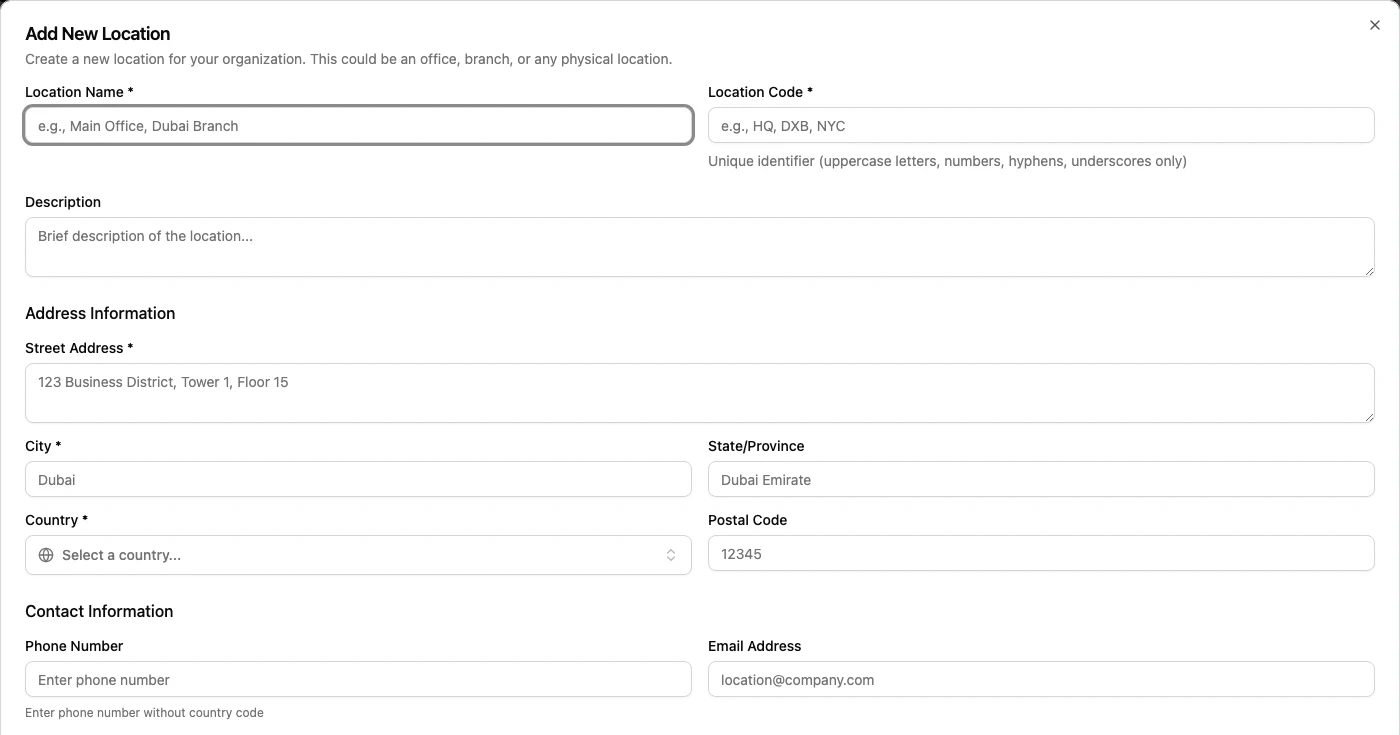
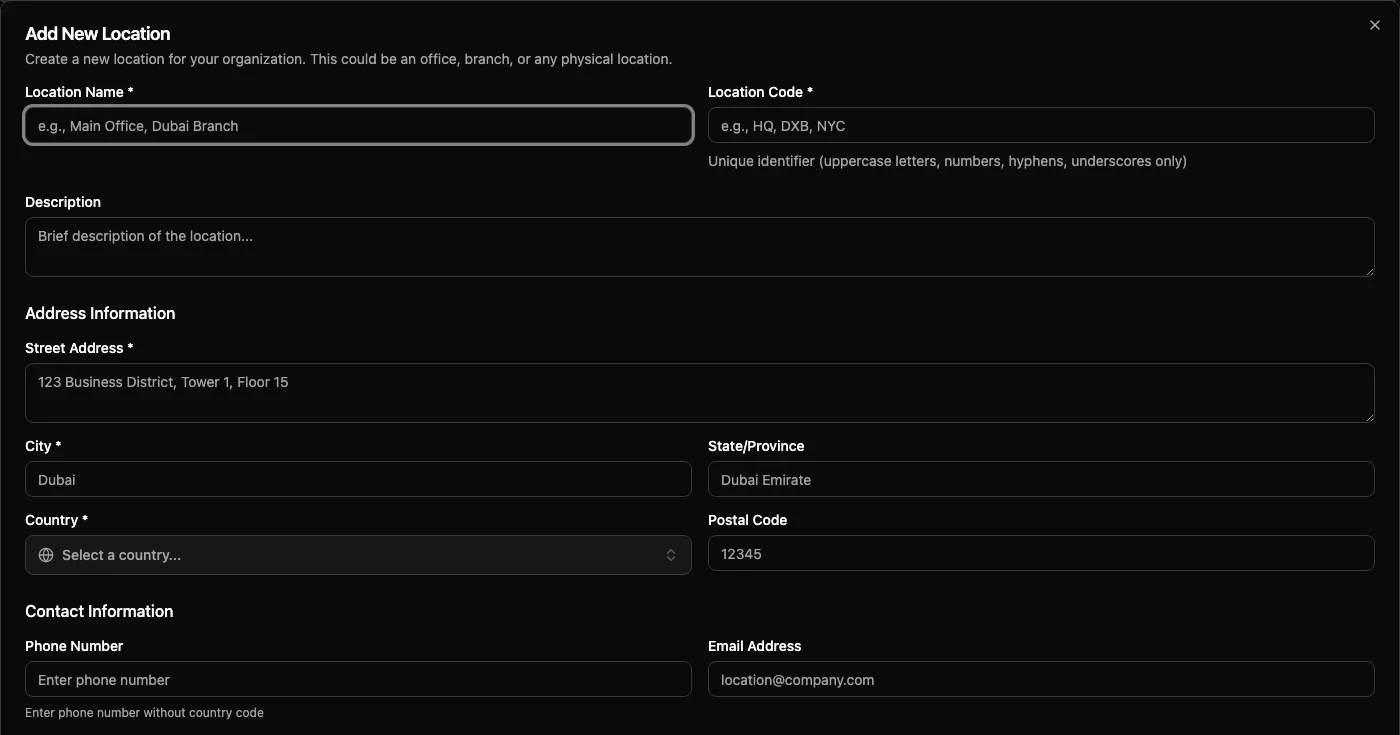
Use Add Location when you need a new branch, office, team, or operating area.
- Open Locations.
- Select Add Location.
- Complete the fields shown in your workspace.
- Use a short, recognizable name.
- Keep the location Active if users should be able to work with it now.
- Finish the form.
Do not create duplicate locations for the same office or team. For example,
choose one naming pattern such as Lahore Office instead of mixing Lahore,
LHR, and Pakistan Lahore for the same location.
Active and Inactive locations
The Locations page shows whether each location is Active or Inactive.
| State | Use it when | Admin guidance |
|---|---|---|
| Active | The location is part of current work. | Use Active for locations that users can be assigned to and that managers should expect to see in day-to-day views. |
| Inactive | The location should no longer be used for new setup or daily assignment. | Use Inactive for closed offices, renamed teams, test locations that should stop being used, or old structures kept for history. |
Treat Inactive as a careful change, not a quick cleanup step. Before changing a location to Inactive, check whether users, student profiles, applications, Leads, tasks, or reports still depend on it.
Avoid renaming an old location to mean something new. If Dubai Office closes
and a new Abu Dhabi Office opens, create the new location instead of reusing
the old name. This keeps past work and reports easier to understand.
Recommended first version for study abroad agencies
Start simple. Locations should match real responsibility, not every possible filter a manager may want later.
For a first setup, most agencies should use one of these patterns:
| Agency structure | Recommended location setup |
|---|---|
| One office | Create one active location for the main office. |
| Multiple branches in one country | Create one active location per branch or city office. |
| Offices in several countries | Create one active location per office or country operating hub. |
| Central remote team | Create one active location for the remote or central team if it has its own workload. |
| Separate processing team | Create a location only if that team owns work separately from branch counselors. |
Keep temporary campaigns, intakes, Lead sources, and destination countries out of Locations unless your agency truly assigns users and work by that structure. Those needs usually belong in fields, pipelines, Lead sources, or reports.
A good first version is easy to explain in one sentence: "Each user belongs to the office or operating team responsible for their day-to-day student work."
How locations affect daily work
Locations connect administration setup with daily operations.
| Area | How locations matter |
|---|---|
| Users | Users are assigned to one or more locations. This helps define where they work and which team or branch they belong to. |
| Student profiles | A student profile may be associated with the location responsible for the student relationship or follow-up. |
| Applications | Applications may be reviewed, assigned, filtered, or reported by the location responsible for the application workflow. |
| Leads | Leads may be routed, assigned, or reviewed by location when the agency works by branch or operating team. |
| Tasks | Tasks may appear in team or location views when managers monitor workload. |
| Reports | Location filters help managers compare branch activity, workload, application progress, and outcomes where reports support location-based views. |
| Access | Roles with assigned, team, or all-record scope may combine with user location assignment to decide what a user can see or manage. |
Locations do not replace roles. Use Users to assign people to locations, and use Permissions and scope to decide what those users can see and do.
Safe change guidance
Location changes can affect many users and active work. Use this checklist before changing existing locations.
| Change | Safer approach |
|---|---|
| Renaming a location | Rename only to fix spelling or make the same location clearer. Do not rename a location to represent a different branch or team. |
| Marking a location Inactive | First check users, open applications, Leads, tasks, and reports that may still use the location. |
| Merging two locations | Decide which location will stay active, then move users and active work before making the old location Inactive. |
| Splitting one location into two | Add the new location, assign a small test group, confirm access and reports, then update the remaining users and work. |
| Removing test setup | Mark test locations Inactive if they may be connected to past test work. Avoid deleting or reusing them for live work unless your admin process confirms it is safe. |
Make large location changes outside busy intake or deadline periods when possible. Tell managers what changed so they can understand differences in reports and team views.
Test after setup
After adding or changing locations, test the setup before inviting more users or changing many assignments.
- Create or choose one safe test user.
- Assign the user to the planned location pattern.
- Give the user the role pattern planned for real users.
- Sign in as the test user.
- Confirm the user can open the expected pages.
- Confirm the user can see the expected student profiles, applications, Leads, and tasks.
- Confirm work from other locations is hidden when it should be hidden.
- Review a report or dashboard view that uses location filters, if available.
- Repeat the test for a manager role if managers use team or location scope.
If the test user cannot see expected work, check the user's active status, assigned locations, default location, roles, and role scope.
Related guides
| Guide | Use it for |
|---|---|
| General settings | Set the main agency profile before configuring branches and teams. |
| Country and region configuration | Plan settings that vary by country, market, branch, or operating region. |
| Users | Assign people to locations, roles, supervisors, and active account status. |
| User Location Assignments | Assign users to branches or operating locations. |
| Permissions and scope | Understand how roles, scope, and locations combine for access. |
| Reports and oversight | Review Leads, applications, tasks, dashboards, and workload after locations are in use. |